Groups List
The Groups List page shows all user groups in Dino. From here you can view, edit, delete, and create groups. Each group defines a set of permissions and access rules by linking a user role to specific form schemas, report schemas, form statuses, and metric types (such as areas, cases, projects, locations, or organizations).
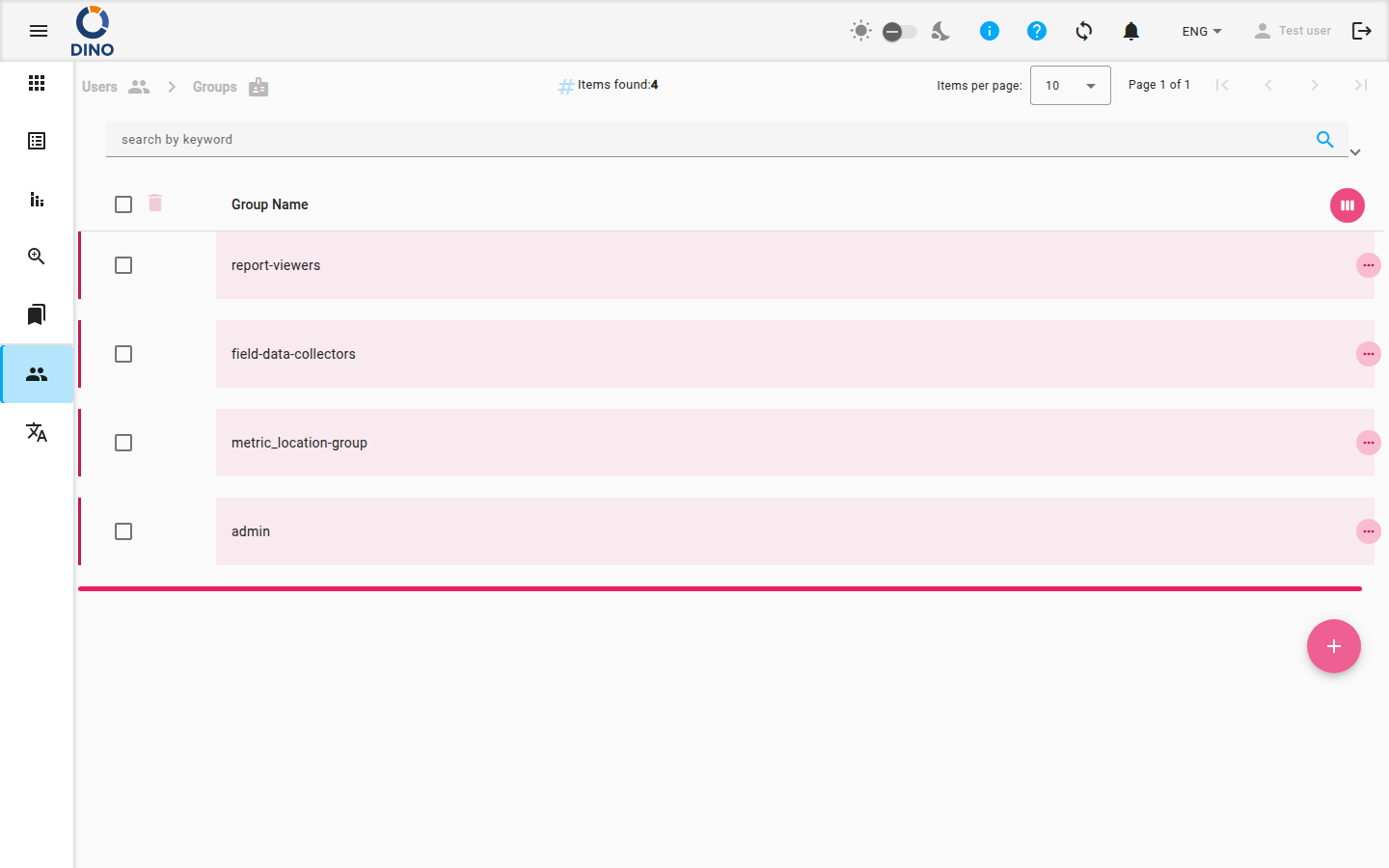
List overview
The table displays the following columns:
- Group Name – the name of the user group (visible by default).
- ID – internal identifier (hidden by default).
- Creation Date – when the group was created (hidden by default).
You can customize which columns appear by clicking the view_week icon in the table header.
Searching and filtering
Use the search bar at the top of the page to filter groups by keyword. The Filters panel (expandable) lets you narrow the list by:
- Date range (from/to)
- Project, location, area, case, organization, and other available filters
You can also save and load filter presets using the preset manager.
Actions on groups
Each row has three action icons on the right:
- visibility – View group details (opens the editor in read‑only mode)
- create – Edit group properties
- delete – Remove the group (confirmation required)
Clicking a row expands a detail section that shows additional information or nested items (if any).
Creating a new group
- Click the + floating button at the bottom right of the screen.
- In the editor dialog that opens, enter a Group name.
- In the Available items panel, navigate through the tabs to select:
- User role (required – you must pick exactly one role)
- Form schemas
- Report schemas
- Form statuses
- Metric types (Area, Case, Project, Location, Organization) – if active
- Click the add icon next to each item to move it to the Group items panel.
- Click Save.
All option
For metric types and other categories, you may see an “All …” option. Selecting this applies the restriction to every item of that type.
Editing or viewing a group
- In the table, click the create (edit) or visibility (view) icon for the group you want to modify.
- In the editor dialog, you can:
- Change the Group name.
- Add or remove items from any tab (only in edit mode).
- Remove items by clicking the delete icon next to them.
- Click Save to apply changes (view mode shows a Close button only).
Deleting a group
- Click the delete icon for the group.
- Confirm the deletion in the dialog that appears.
Irreversible action
Deleting a group cannot be undone. Make sure no users rely on the group before removing it.
Related pages
- Users List – manage individual user accounts and their group assignments.
- Metrics – configure metric types that can be assigned to groups (areas, cases, projects, etc.).
- Form Schemas – create and edit form schemas that can be linked to groups.
- Report Schemas – manage report schemas available to groups.
- Interface overview – learn about navigation and general layout.