Edit a Form Submission
The Edit Form screen allows you to modify an existing form submission. You can update data, add new information, or save your changes as a draft to complete later.
When you open a form submission to edit, you see the same form interface used for data entry, but with all the previously saved data already filled in.
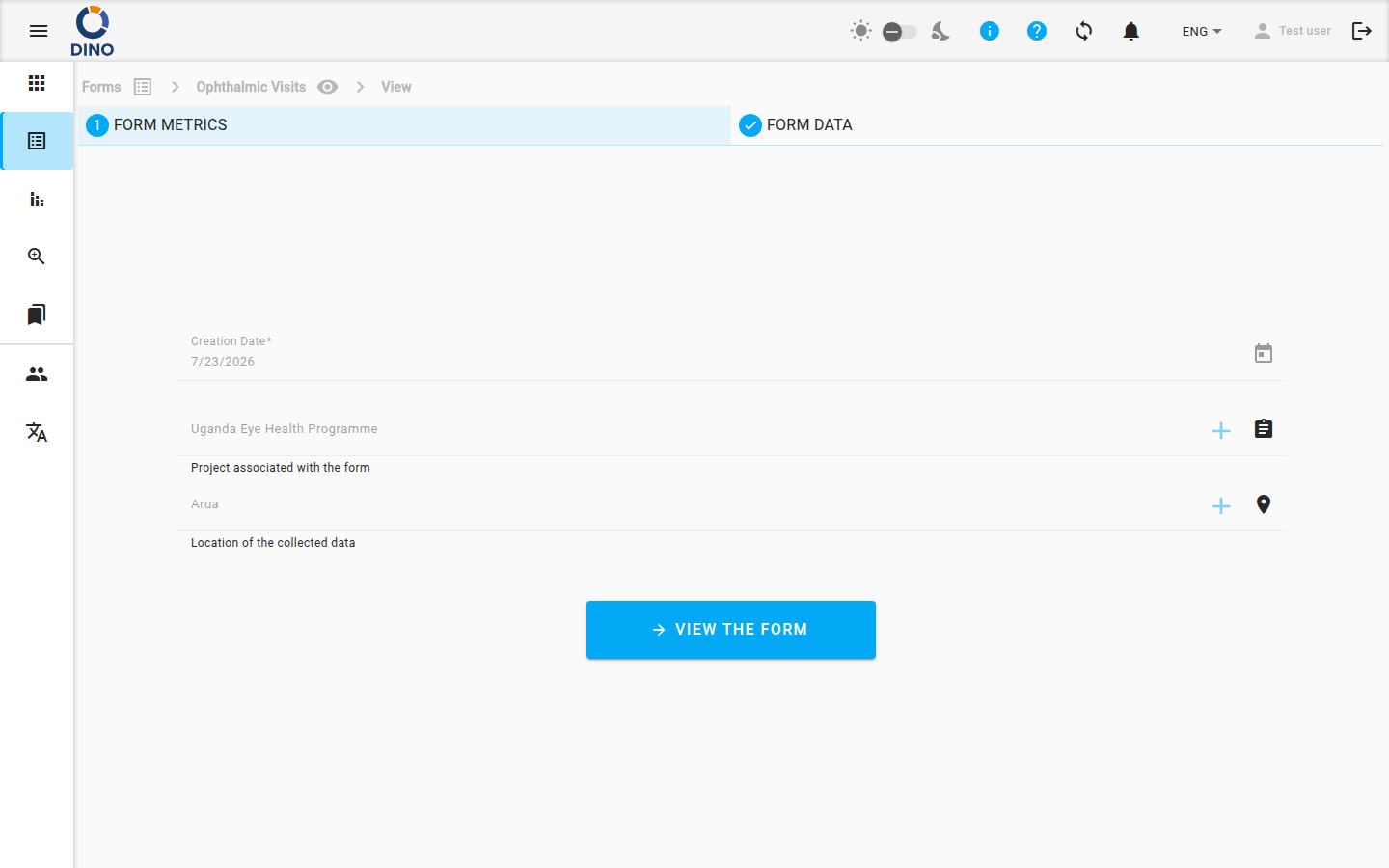
How to Edit a Submission
- Navigate to the list of submissions for your form.
- Locate the specific submission you want to edit.
- Click the Edit button (usually represented by a pencil icon) for that submission. This opens the form in edit mode.
- Make your desired changes to any field in the form.
- Choose an action at the bottom of the form:
- Save Draft: Saves your current changes without submitting the form. You can return and edit it again later.
- Submit: Saves all changes and submits the updated form data.
Tracking Changes
Dino automatically logs the changes you make between the original submission and the edited version. This creates a history of who changed what and when.
Available Features
While editing, you have access to the same features as when creating a new submission:
- Optional Metrics: Some forms may have optional sections or questions that you can choose to fill out.
- File Upload: Attach new files or replace existing ones if this feature is enabled for your form.
- Secondary Fields: For certain data points, additional related fields may be displayed for more detailed entry.
- Form Relationships (Dependencies): If the form includes dependent fields, you may see additional prompts based on previous answers. The dependencies are defined when the form schema is created.
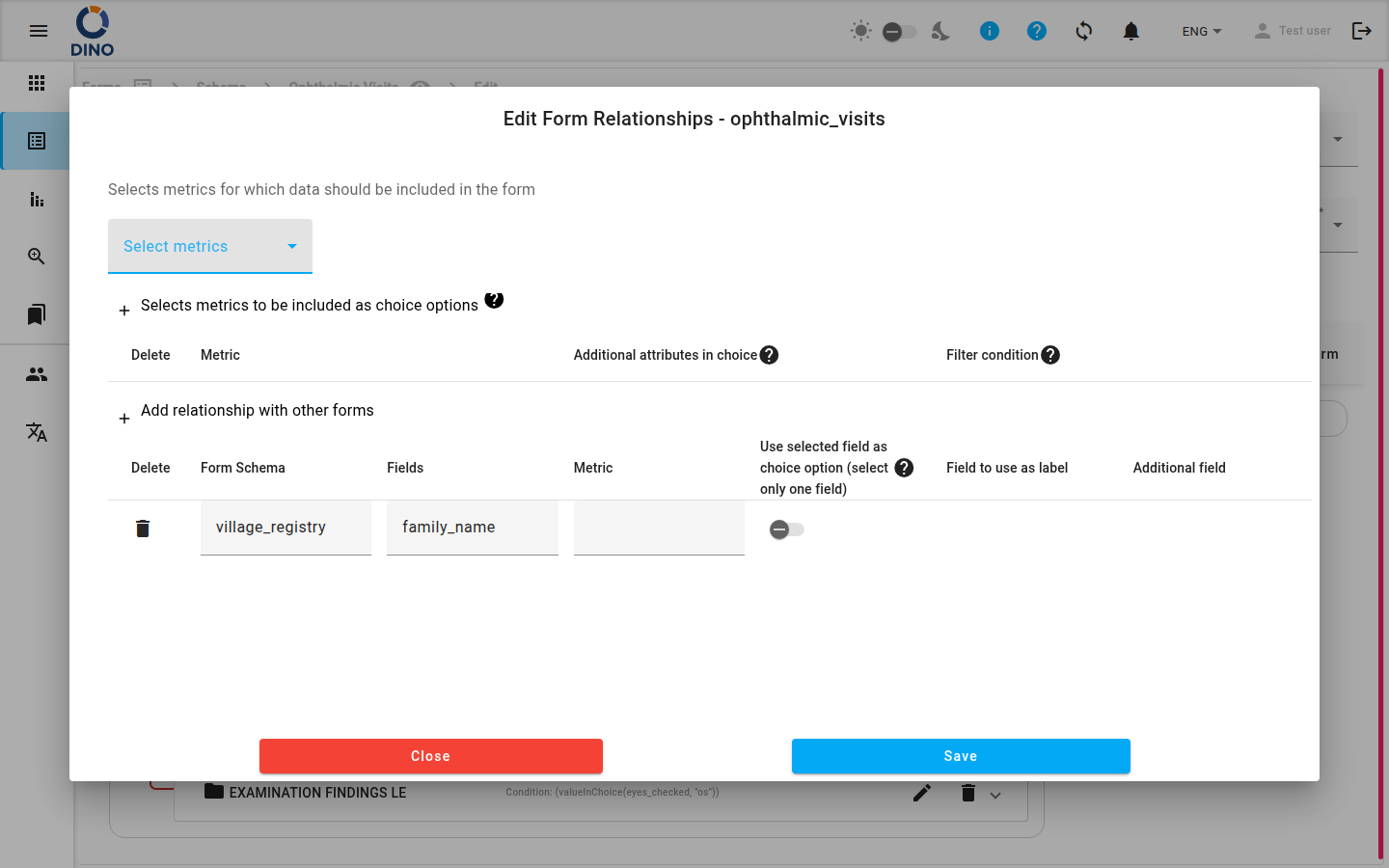
Data Integrity
Be cautious when editing critical data. Other reports or analyses may depend on the original submitted values. Consider if creating a new, corrected submission might be more appropriate than editing an old one.
Understanding the Form Structure
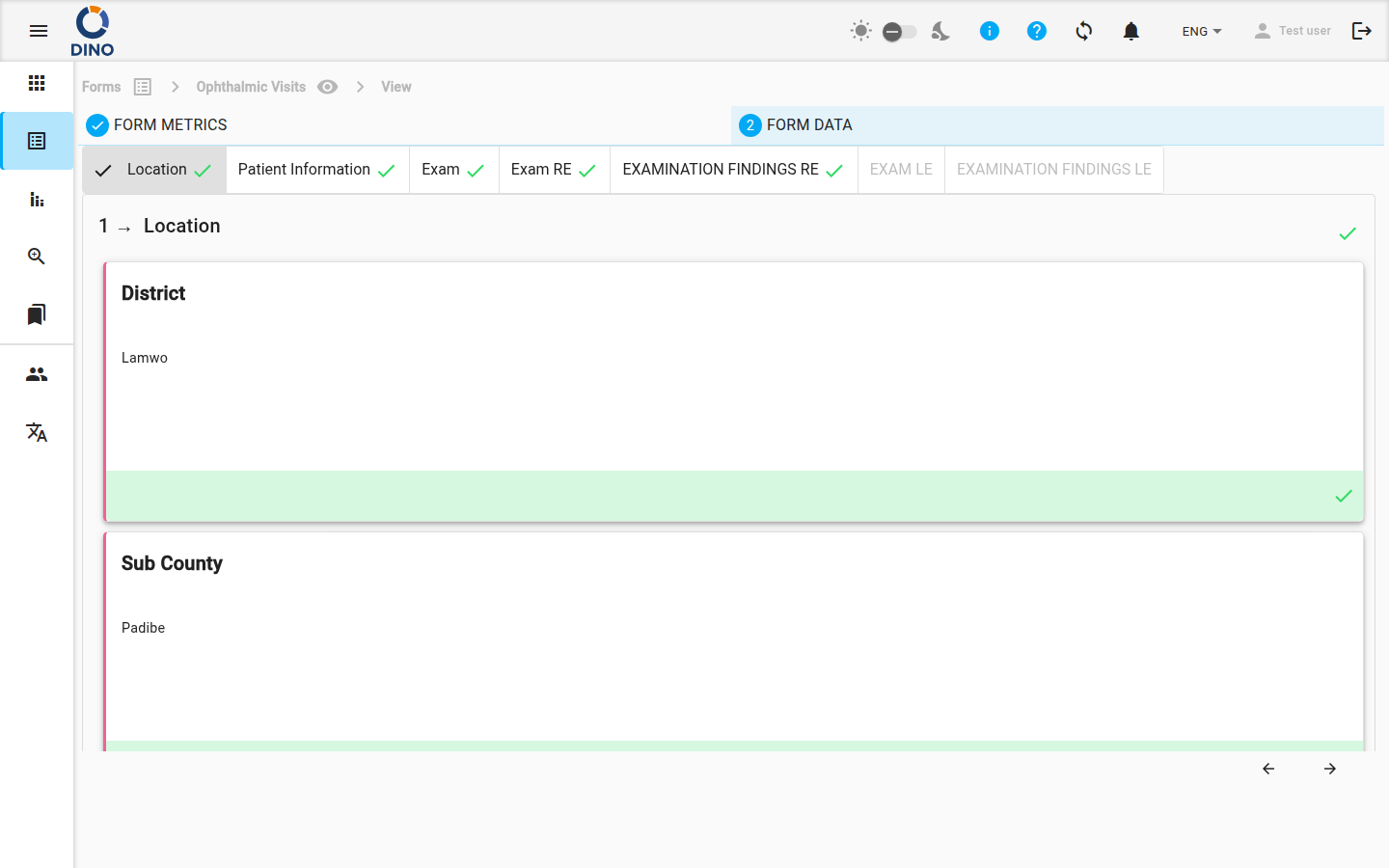
The form you see while editing is based on a form schema — the underlying blueprint that defines all fields, sections, and rules. You can view a compiled preview of the form schema from the designer.
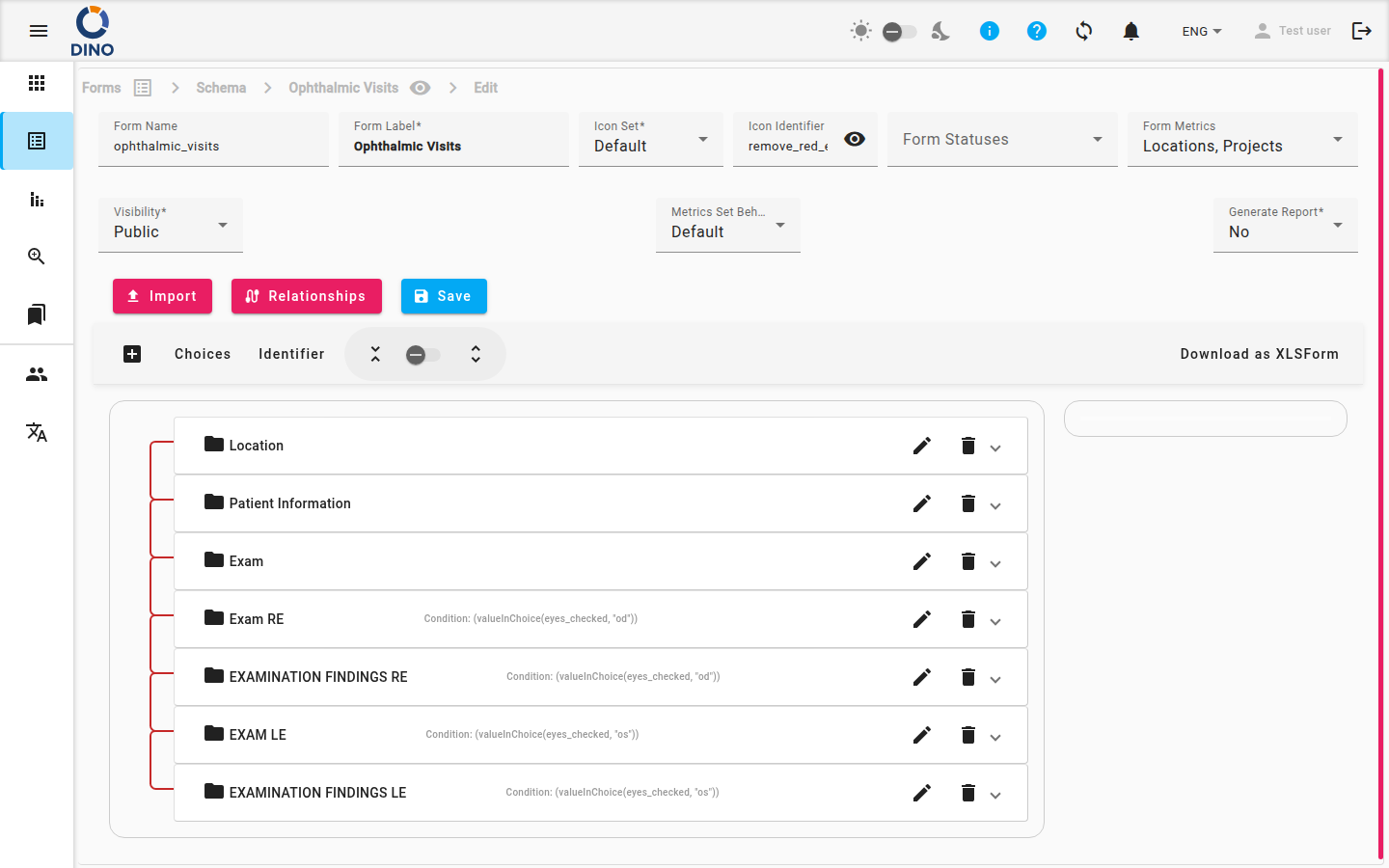
The schema itself can be edited separately. If you need to change the structure of a form (add or remove fields, adjust validation), see Edit Form Schema.
Related Actions
- To understand the structure of the form itself, see Edit Form Schema.
- To create a brand new submission, you typically start from the main Forms page.
- To browse your forms and submissions on a map, see Forms Map.