Resetting Your Password
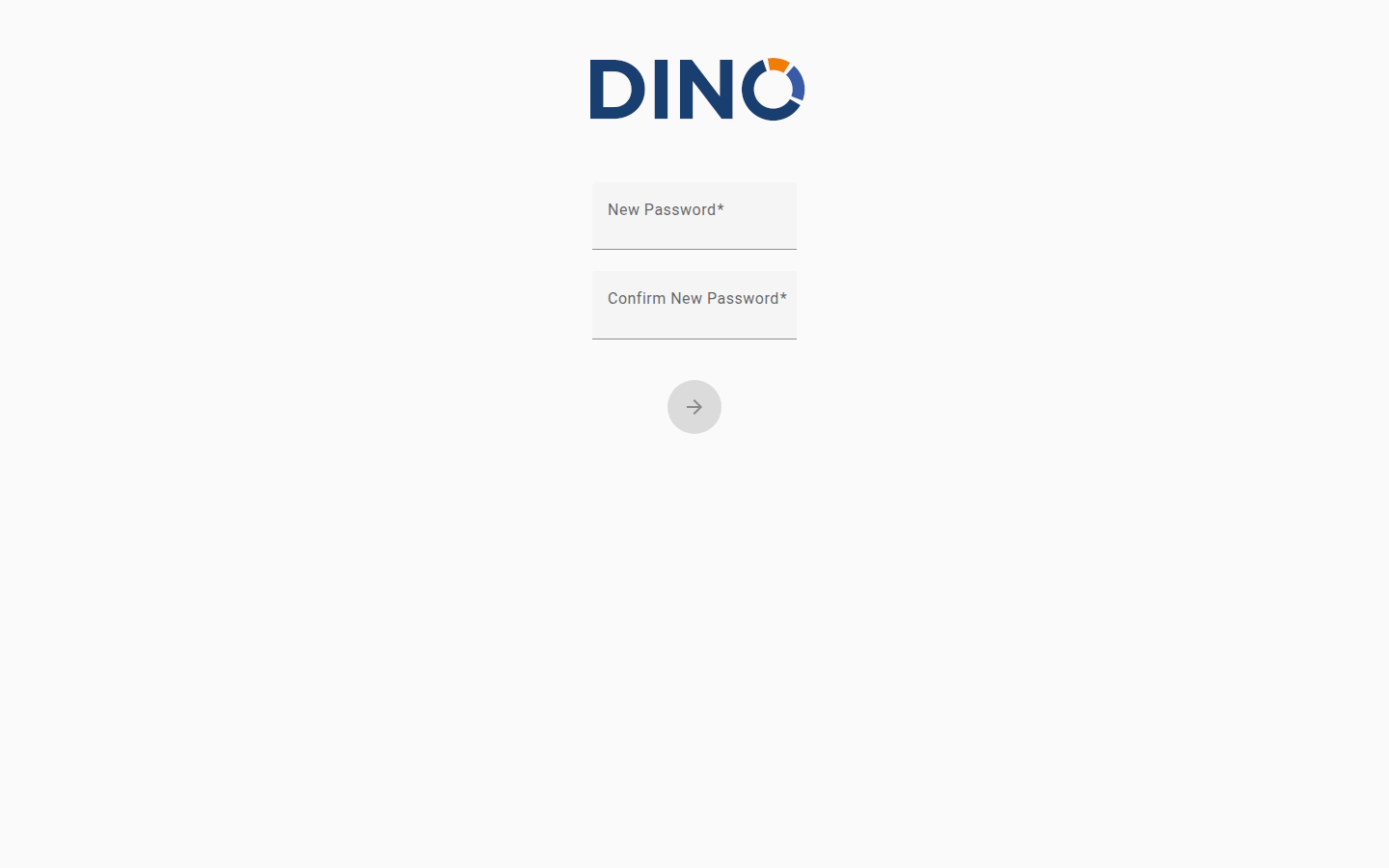
The Reset Password page lets you choose a new password after requesting a reset link. You arrive here by clicking the link sent to your email address — the same link you requested from the "Forgot your password?" option on the Login page.
Note
If you have not yet requested a reset link, go to the Login page first and click "Forgot your password?".
Setting a New Password
- Open the password reset link from your email. This will bring you directly to the Reset Password page.
- Enter your new password in the first field. Your password must be at least 9 characters long.
- Re-enter the same password in the Confirm New Password field to make sure it matches.
- Click the arrow button to confirm your new password.
If the password is accepted, a confirmation message will appear at the top of the screen and you will be automatically redirected to the Login page after a few seconds. You can then sign in with your new password.
Troubleshooting
"Your Reset Password ticket is invalid or expired. Please try again."
Warning
The link you used is no longer valid. Reset links expire after a short time for security reasons. Go back to the Login page, click "Forgot your password?" again, and request a new link.
"Incorrect password"
Warning
The password could not be saved. Make sure both fields contain exactly the same password and that it is at least 9 characters long, then try again. If the problem persists, request a new reset link from the Login page.
The page does not redirect after a successful reset
Tip
If the confirmation message appears but the page does not redirect to the Login page on its own, navigate there manually. Your password has already been changed successfully.