Edit Report
The Edit Report page allows you to modify an existing report. You can update its metrics, details, and other information after it has been created.
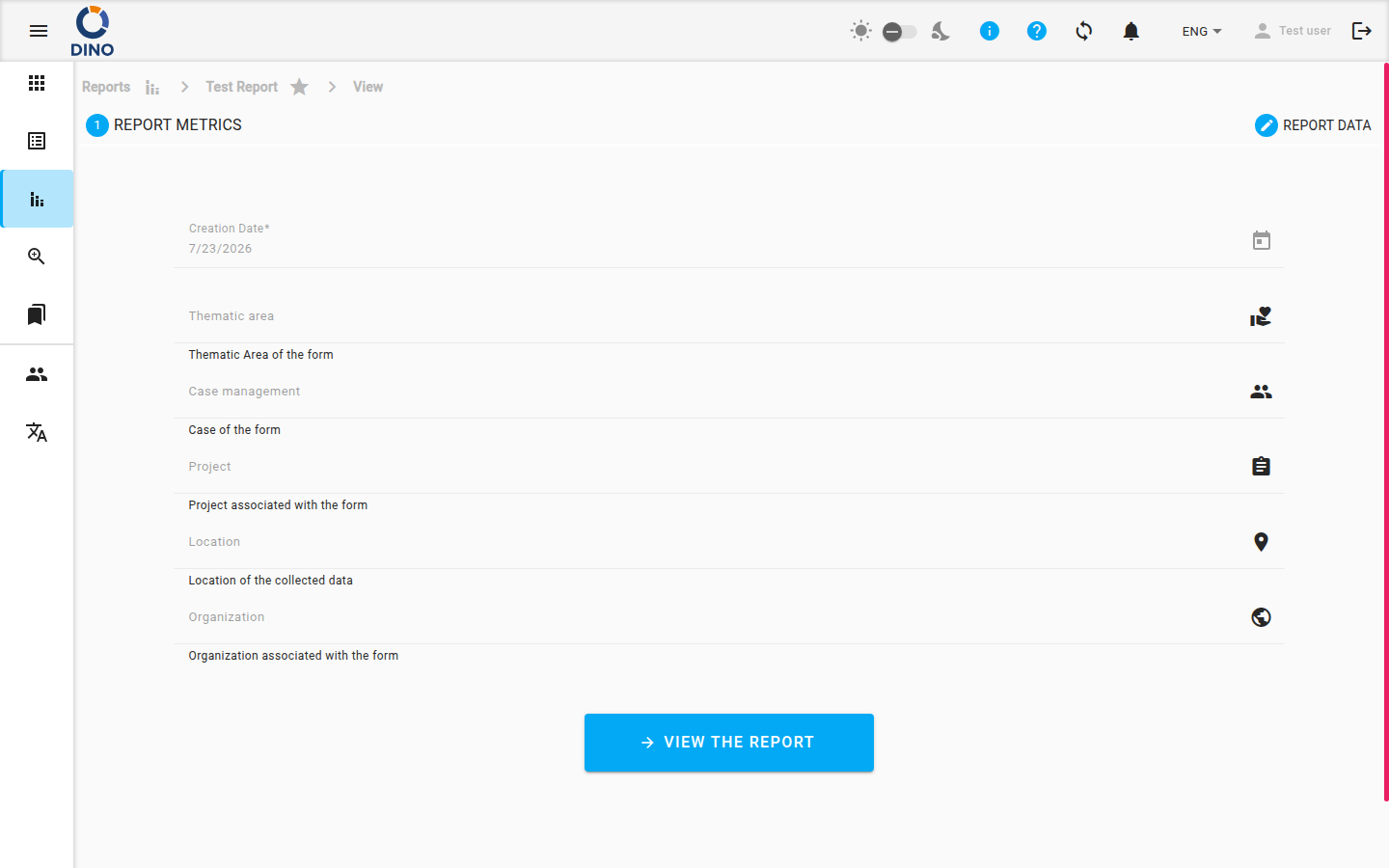
Accessing the Edit Page
You can navigate to the Edit Report page in two ways:
- From the main Reports list, click on a report's title or the Edit action (often represented by a pencil icon).
- From within a report's detailed view (after clicking View the Report), look for an Edit button or link.
Editing Report Information
Once on the Edit Report page, you will see a form similar to the one used for creating a report. The form is pre‑filled with the report’s current data.
Steps to Edit a Report
- Review the pre‑filled data in the form fields.
- Make your changes to any of the available fields:
- Primary Metrics: Update the main numerical values for the report.
- Secondary Metrics: Edit additional data points (if configured for your form schema).
- Details: Modify descriptive text, dates, or other supporting information.
- Save your changes by clicking the Save or Update button at the bottom of the form.
Optional Fields
Depending on your organization’s configuration, some metric fields may be optional. They are usually marked accordingly. You can leave optional fields blank if no data is available.
Viewing the Rendered Report
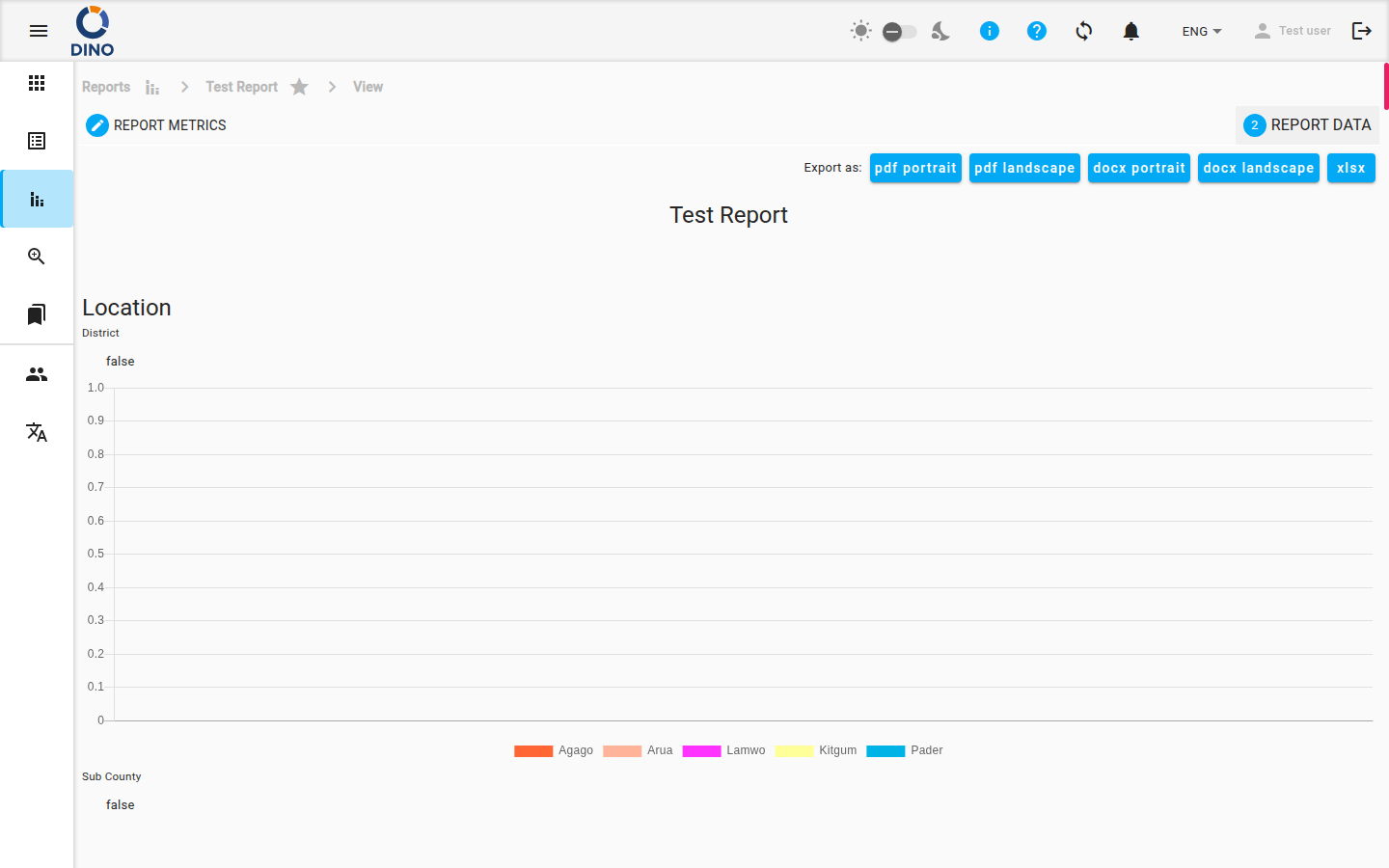
After saving your changes, you can view the formatted report. Click the View the Report button or link to see a clean, rendered version of the report data.
Understanding the Form Schema
The structure and available fields on the Edit Report page are determined by the form schema set up by your administrator. This ensures data is collected consistently.
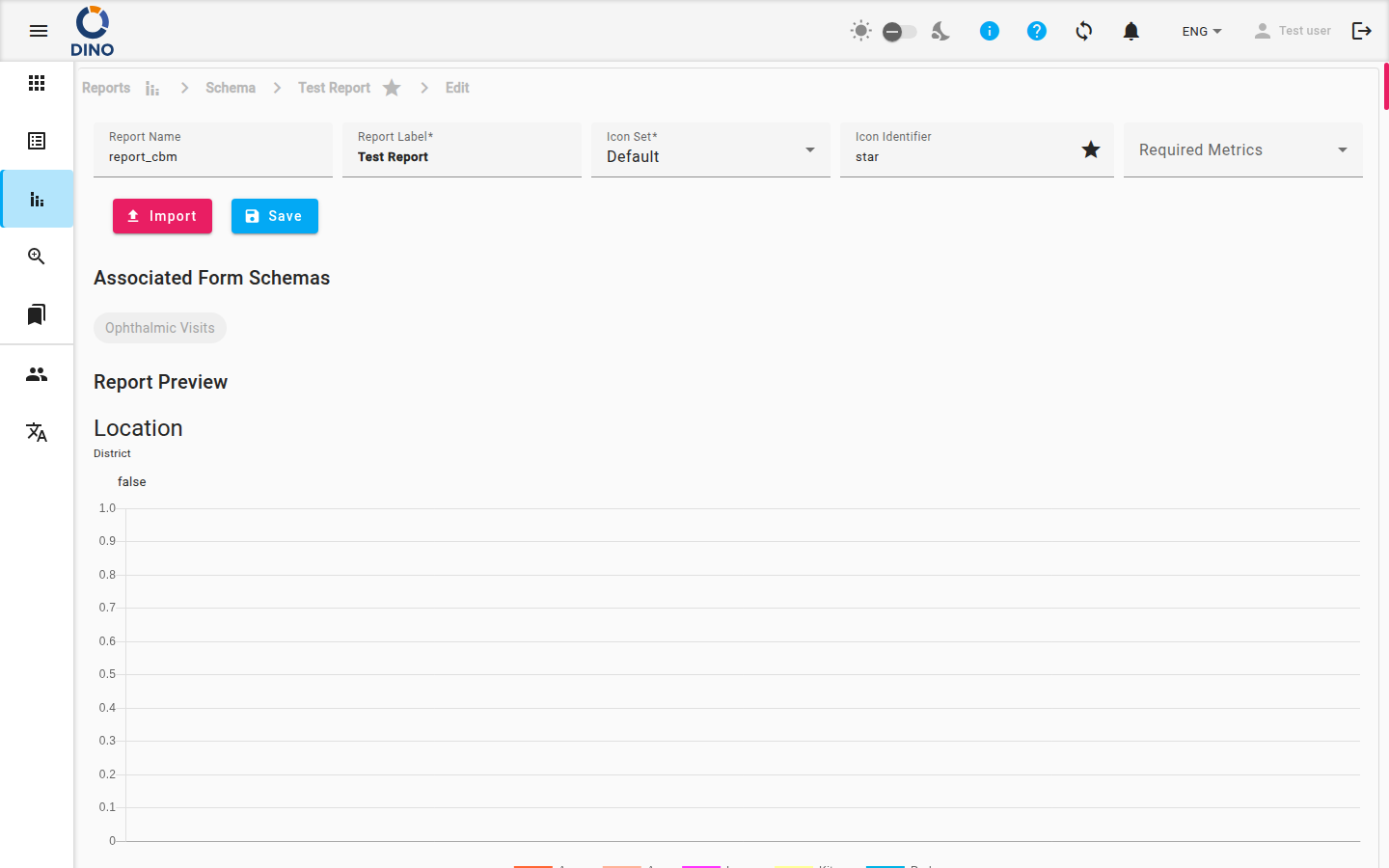
If you need to edit information that does not appear as a field, contact your administrator – the form schema may need to be updated. You can learn more about the underlying structure in the Edit Report Schema documentation.
Data Integrity
Be cautious when editing historical report data, as changes can affect trend analysis and historical records. Ensure your updates are accurate.