Organizations
The Organizations page lists all organizations configured in your Dino instance. Use this screen to view, add, edit, delete, and import organizations, as well as to manage the organizational hierarchy.
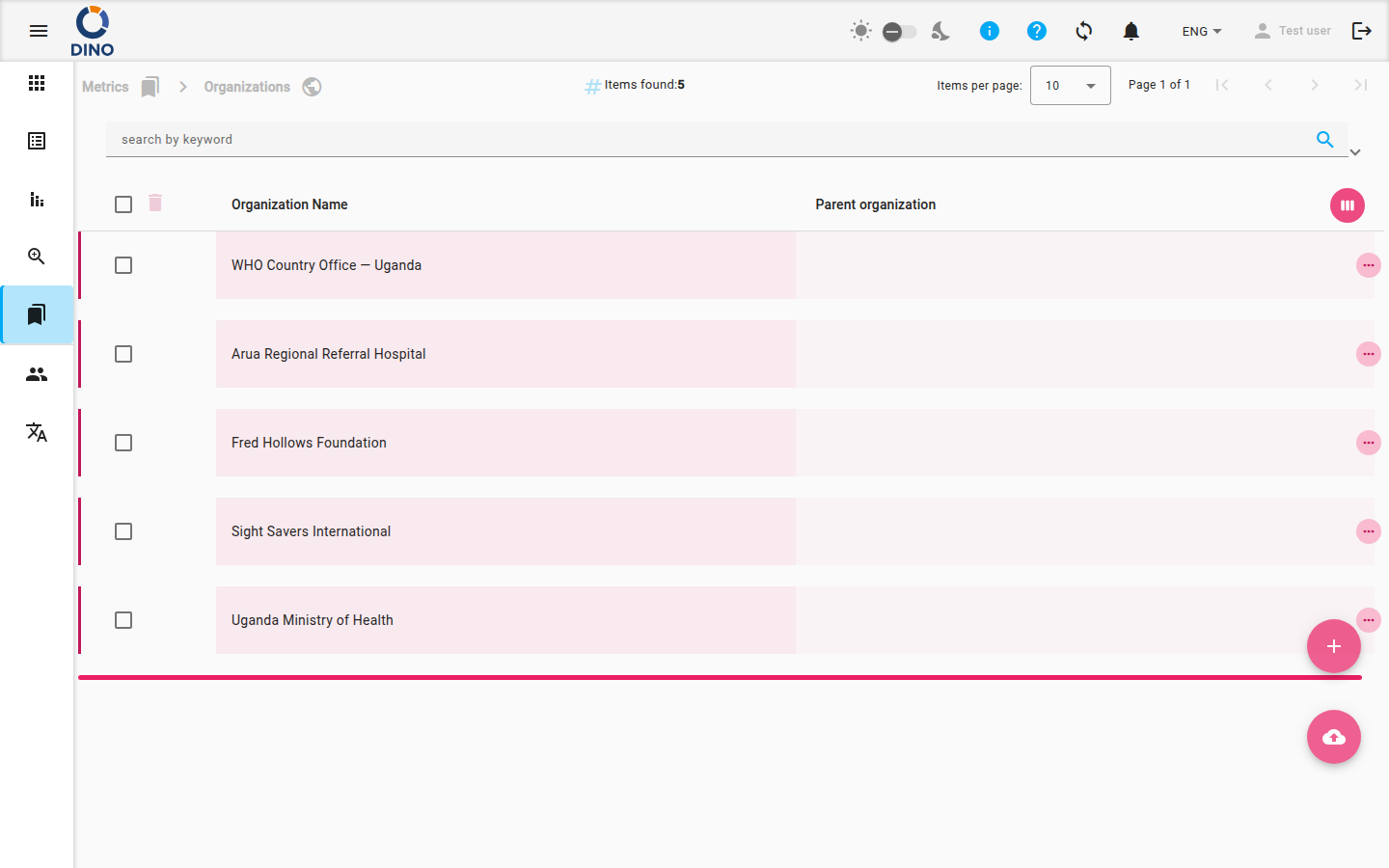
Table Columns
By default, the table shows the following columns:
- Organization Name – the name of the organization. This column is sortable.
- Parent Organization – the name of the parent organization, if any.
Additional columns (ID, Creation Date, Logo path, Website URL, Additional Attributes) are hidden but available when you customize the column display using the View Week icon (bottom right of the table header).
Row Actions
Each row has three actions accessible by clicking the More button (three dots) next to the row:
- View (visibility icon) – opens a read‑only dialog with organization details.
- Edit (pencil icon) – opens a dialog to modify the organization’s details.
- Delete (trash icon) – permanently deletes the organization. A confirmation dialog appears before deletion.
Delete organizations with care
Deleting an organization cannot be undone. Make sure no active cases or forms depend on it before removal.
You can also click directly on a row to select it (for bulk actions) or expand it to see additional details inline.
Bulk Actions and Filters
Select multiple rows using the checkboxes in the first column, then use the bulk delete or bulk edit buttons that appear in the toolbar.
Search and Filters
The filter bar at the top of the page offers:
- Keyword search – filters organizations by any text.
- Date range – filter by creation date range.
- Preset manager – save and load search filter presets.
- Export – download the filtered list as a file.
Click the Filter button to open advanced filters for more granular control.
Adding and Importing Organizations
Two floating action buttons are always visible in the bottom‑right corner:
- Add New (plus icon) – opens a dialog to create a new organization. You will be prompted to enter the organization name, parent organization, website URL, and other details.
- Import (cloud upload icon) – lets you upload a file (CSV, JSON, or XML) to bulk import organizations. Follow the on‑screen instructions to map the fields.
Internationalization
Organization names and labels can be translated if your Dino instance supports multiple languages. See Languages for details.
Steps: Create a New Organization
- Click the Add New floating button.
- In the dialog that opens, fill in the required fields (Organization Name and at least one attribute).
- Optionally set a Parent Organization to create a hierarchy.
- Click Save. The new organization appears immediately in the list.
Steps: Export Organizations
- Apply any filters you need in the search bar.
- Click the Export button (cloud download icon) in the filter bar.
- Choose the export format (CSV, Excel, etc.) and confirm.
- The file downloads to your device.
Related Pages
- Metrics Overview – all metric management pages.
- Thematic Areas – manage thematic areas for organizations.
- Cases – associate cases with organizations.
- Locations – link locations to organizations.
- Projects – connect organizations to projects.