Edit Report Schema
The Edit Report Schema page allows you to create a new report schema or modify an existing one. A report schema defines the structure, layout, and data sources for a report in Dino.
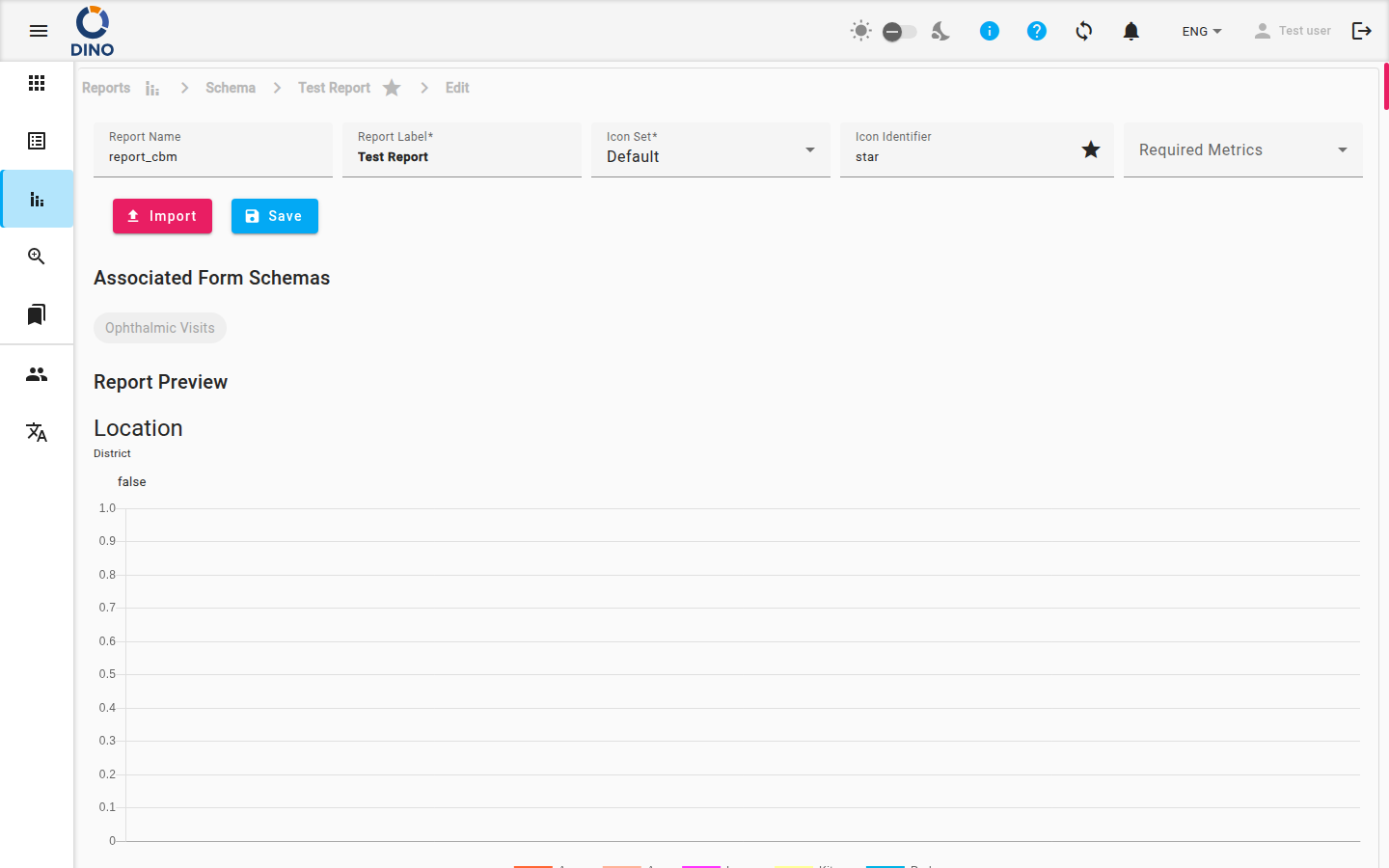
On this page, you configure the report’s name, description, and the specific data fields that will appear in the report from your form submissions.
Creating a New Report Schema
To create a new report schema:
- Navigate to the Reports section in the main menu.
- Click Create Report Schema.
- You are taken to the Edit Report Schema page.
- Enter a descriptive Name for your report.
- (Optional) Provide a Description to explain the report’s purpose.
- Configure the report’s data and layout using the available options.
- Click Save to create the schema.
Editing an Existing Report Schema
To modify a report schema you have already created:
- Navigate to the Reports section.
- Find the report schema you wish to edit in the list and click on it.
- Click the Edit button (often represented by a pencil icon).
- You are taken to the Edit Report Schema page with the current configuration loaded.
- Make your desired changes to the name, description, or data configuration.
- Click Save to update the schema.
Saving Your Work
Always remember to click Save after making changes. Your modifications are not applied until you save the schema.
Configuring Report Data
The core of the report schema is defining which data from your form submissions will appear in the report. You can typically:
- Select Data Source: Choose the form schema that contains the data you want to report on.
- Select Data Fields: Choose specific fields from your connected form schemas to include as columns in the report.
- Set Display Names: Customize the column header shown in the report for each selected field.
- Define Filters: Set conditions to include only specific submissions that meet your criteria (for example, submissions from a certain date range).
Data Source
A report schema must be connected to at least one form schema to have data to display. Ensure the relevant form exists before creating your report.
Next Steps
After saving your report schema, you can:
- Navigate to the Reports page to view and run your new report.
- Return to this page to make further adjustments as needed.