Reports
The Reports area is your hub for accessing all available report schemas. A report schema defines the structure and content of a report that can be generated from your collected data. From here, you can browse schemas and access the reports that have already been created.
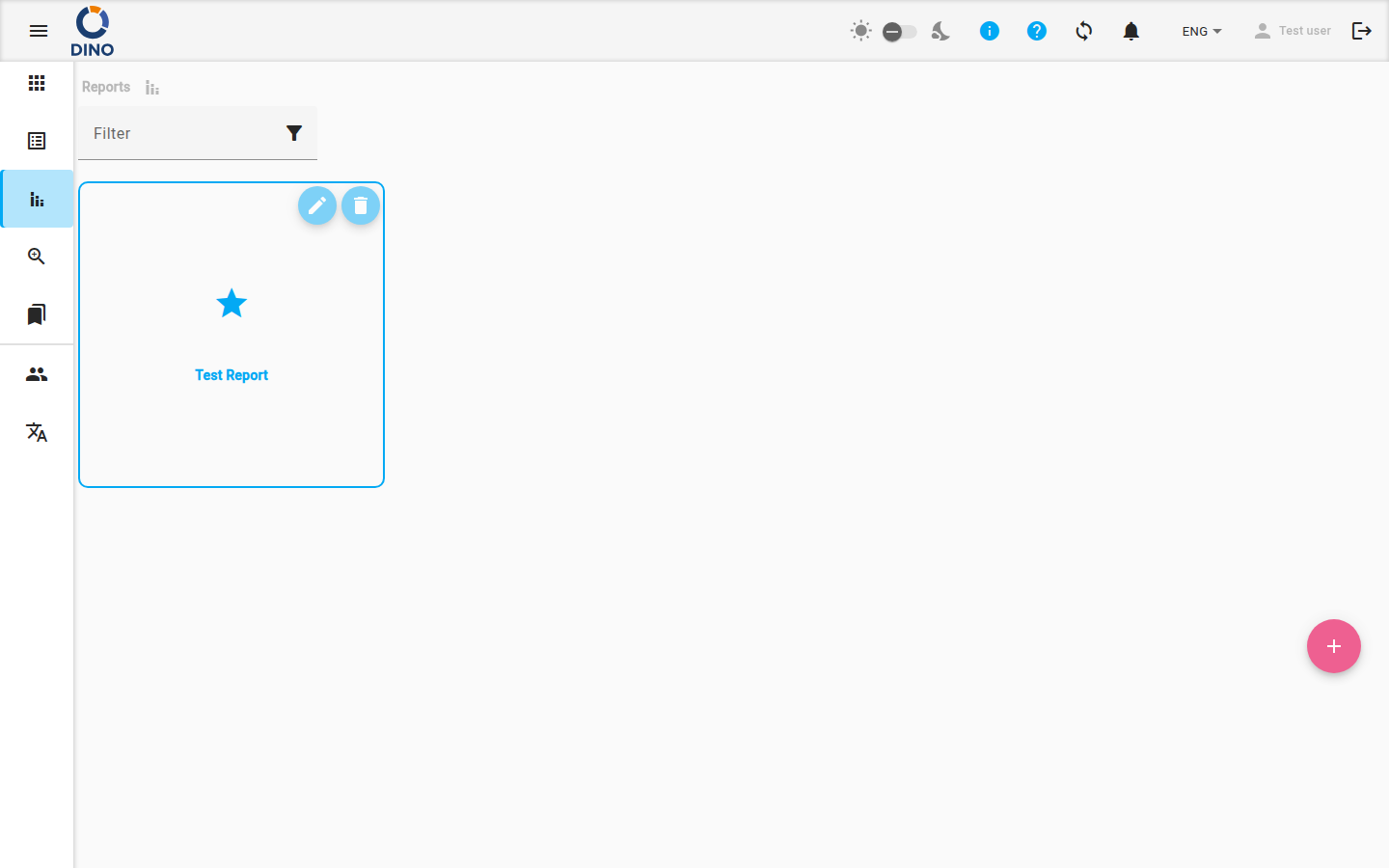
Browsing Report Schemas
When you open the Reports page, you see a list of all report schemas you have permission to access. The list is sorted alphabetically by the schema's label.
To find a specific schema:
- Use the search bar at the top of the page.
- Type any part of the schema's name or label.
- The list will filter in real-time to show only matching schemas.
To view the reports for a specific schema, click on its card in the list.
Getting Started
If you see the message "There are no reports," it means no report schemas have been created yet or shared with you. Contact your Dino administrator to get started.
Creating a New Report
You can start the process of generating a new report directly from the main Reports page.
- Click the + (plus) button located in the bottom-right corner of the screen.
- A menu or dialog will open allowing you to select the report schema you want to use.
- After selecting a schema, you will be taken to the report creation form to choose your metrics, set a date range, and generate the report.
Credits Required
Some report schemas may require Dino-AI credits to generate. If you do not have enough credits, you will be prompted to add more to your account before proceeding.
For detailed steps, see the guide on Edit Report.
What You Can Do
From the main Reports page, you can navigate to perform these key actions:
- Edit Report — Generate a new report document by selecting a schema, choosing your metrics, and setting a date range.
- Edit Report Schema — Create new report schemas or edit existing ones to define what data appears in reports. This typically requires administrator permissions.