Dashboard
The Dashboard is the first screen you see after logging into Dino. It serves as your central hub for navigating the application. Depending on your system's configuration, your Dashboard will appear in one of two layouts: a Menu Dashboard or a Report Dashboard.
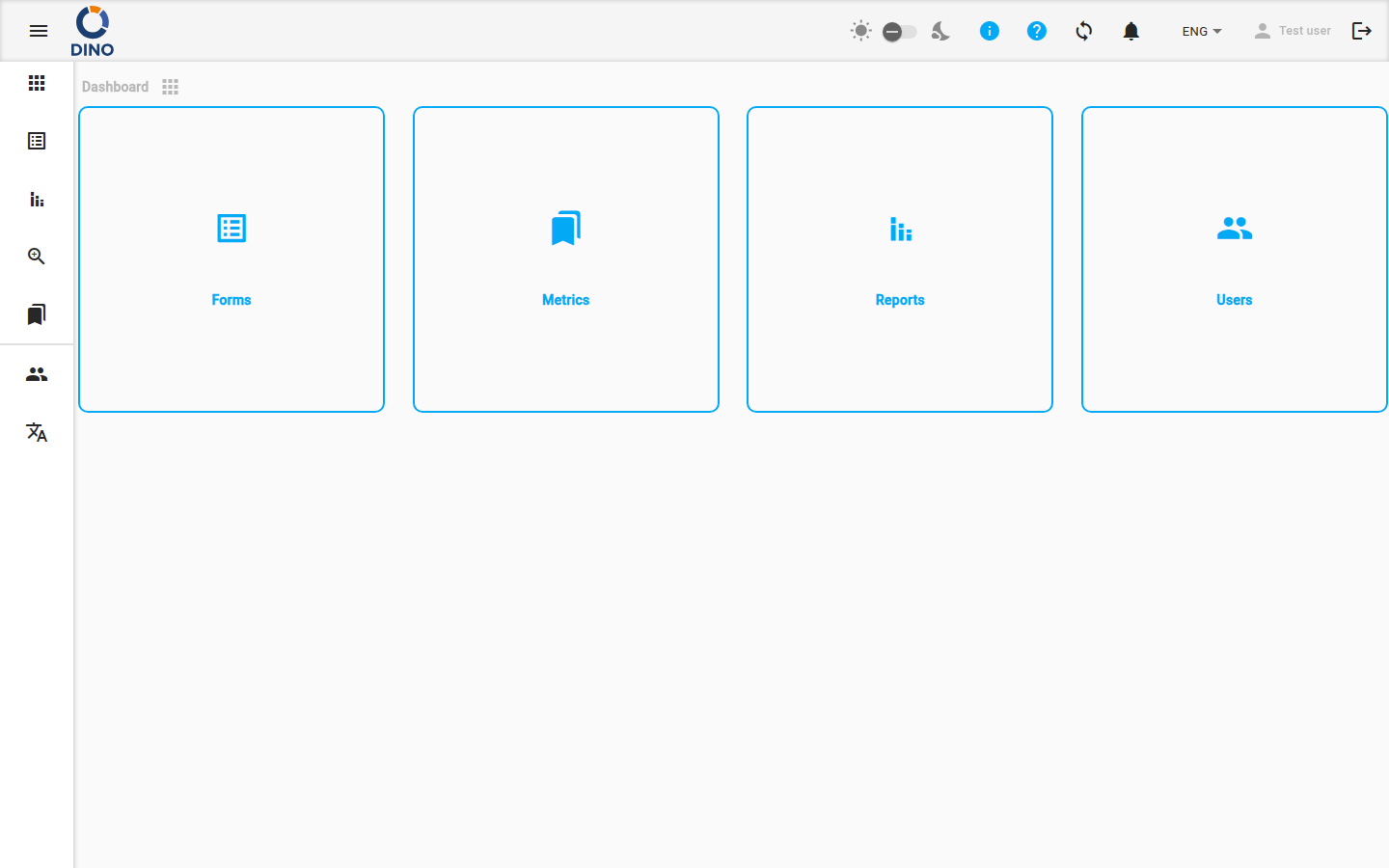
Menu Dashboard
In this layout, the Dashboard presents a grid of navigation cards. Each card provides quick access to a major area of the application that you have permission to use.
You will typically see the following cards:
- Forms: Navigate to the Forms area to create form schemas, collect data, and review submissions.
- Reports: Navigate to the Reports area to create, view, and manage reports based on your collected data.
- Metrics: Navigate to the Metrics area to manage reference data like projects, locations, and organizations. !!! warning "Visibility" The Metrics card is hidden if your user account has guest-only permissions.
- Users: Navigate to the Manage Users area to manage user accounts and groups. !!! tip "Admin Access" The Users card is only visible to users with administrator privileges.
To navigate, simply click on the card for the area you wish to access.
Report Dashboard
In this layout, your Dashboard is personalized to display a single report that you have marked as a favorite. This allows you to view key data visualizations immediately upon login.
If you have not yet selected a favorite report, you will see a welcome message prompting you to add one.
Setting a Favorite Report
- Go to the Reports area.
- Open the report you want to see on your Dashboard.
- In the report list or report view, find and click the Add to favourites action (usually represented by a star icon).
- Refresh or return to your Dashboard. The selected report will now be displayed.
Changing or Removing a Favorite
To change your favorite report, simply add a different report to your favorites. The new report will replace the old one on your Dashboard. To clear the Dashboard, you can remove the favorite report setting from your browser's local storage, or contact your system administrator.
Guided Tour
The first time you access Dino, a guided tour may automatically start from the Dashboard to introduce you to the application's main features.
- You can follow the on-screen prompts to learn about navigation and key actions.
- If you skip or finish the tour, you can restart it at any time from the help menu in the User Area.