Edit Form Schema
The Edit Form Schema page lets you create a new form schema or modify an existing one. Here you define the form’s basic attributes, manage its statuses and metrics, control visibility, and link the schema to other forms through relationships.
You can reach this page by:
- Clicking Create on the Forms overview to build a new schema.
- Selecting Edit on an existing schema’s card or from its detail view.
Breadcrumbs at the top show your current position (e.g., Forms > My Survey > Edit).
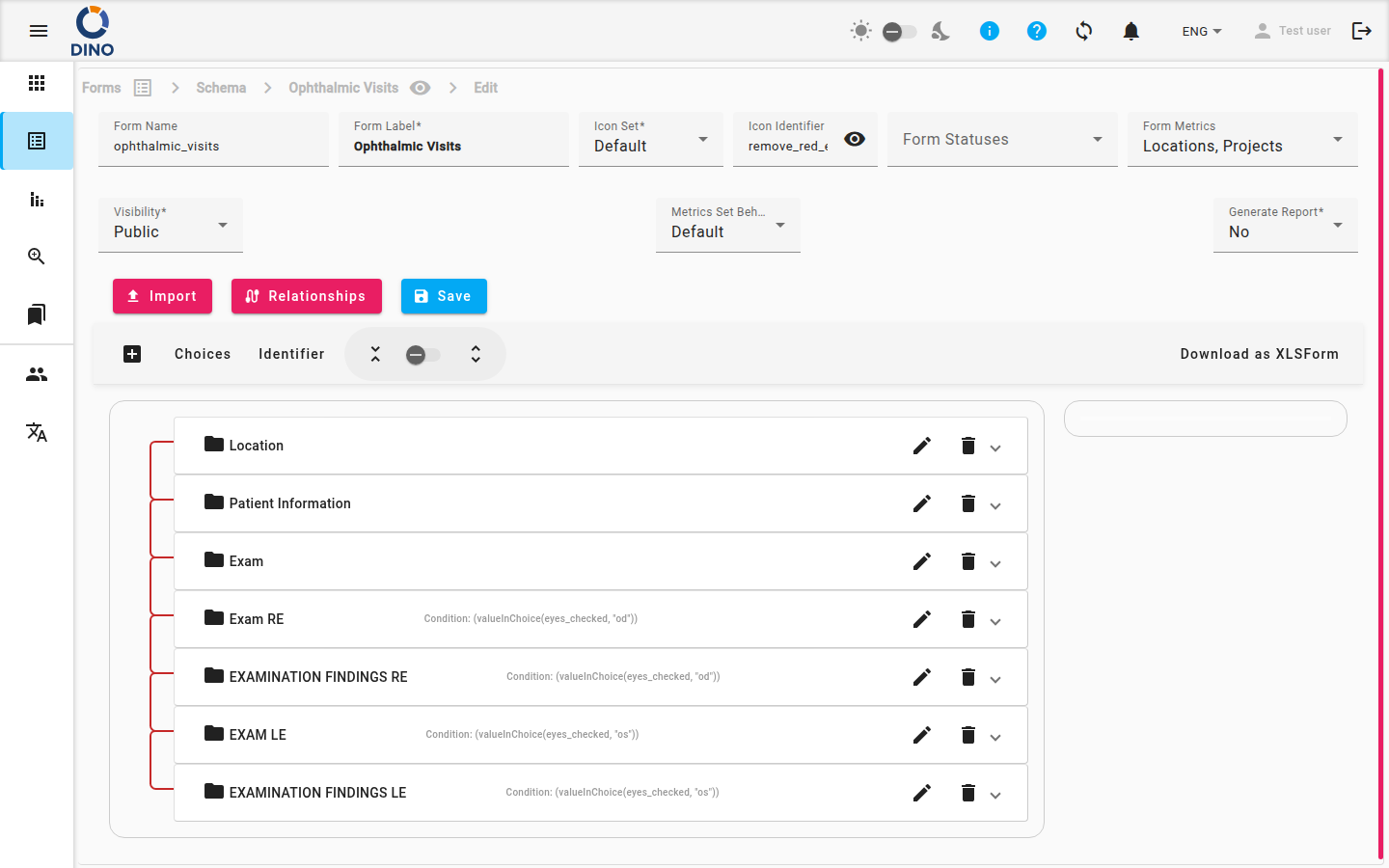
Form Attributes
Fill in or adjust the following fields:
| Field | Description |
|---|---|
| Form Name | A unique system identifier (e.g., survey_2025). Dino warns if the name is already taken. |
| Form Label | The human‑readable name displayed in lists and reports. |
| Icon Set | Choose Default (material icons) or Humanitarian (custom SVG icons). |
| Icon Identifier | Pick an icon from the autocomplete list. The preview updates live. |
| Form Statuses | One or more labels that describe the state of a submission (e.g., Draft, Approved, Rejected). Select existing statuses or Create new Status to add one on the fly. |
| Form Metrics | Metrics to collect for every submission. Select one or more from the list. |
| Visibility | Private – only members of assigned groups can see the form. Public – anyone with the link can view and submit. |
| Metrics Set Behavior | Default – each metric value can appear multiple times across submissions. Unique – a metric value (e.g., a district name) can be used only once per form. |
| Generate Report | When Yes, Dino automatically generates a report after each submission. This option is hidden if an auto‑report is already configured. |
Unique Metrics Set Behavior
Use Unique carefully — once a value is used for a metric, it cannot be reused in another submission of the same form.
Managing Form Statuses
- Click the Form Statuses field to expand the list.
- To add an existing status, check its checkbox.
- To create a new status, click Create new Status. A dialog opens where you can enter a label, choose a color, and save.
- To edit an existing status, click the edit icon (pencil) next to it.
- Click outside the dropdown to close it.
Defining Relationships
Relationships let you link fields across different form schemas (e.g., a sub‑form that depends on a choice in the main form).
- Click the Relationships button.
- In the dialog, add, edit, or remove connections between schemas.
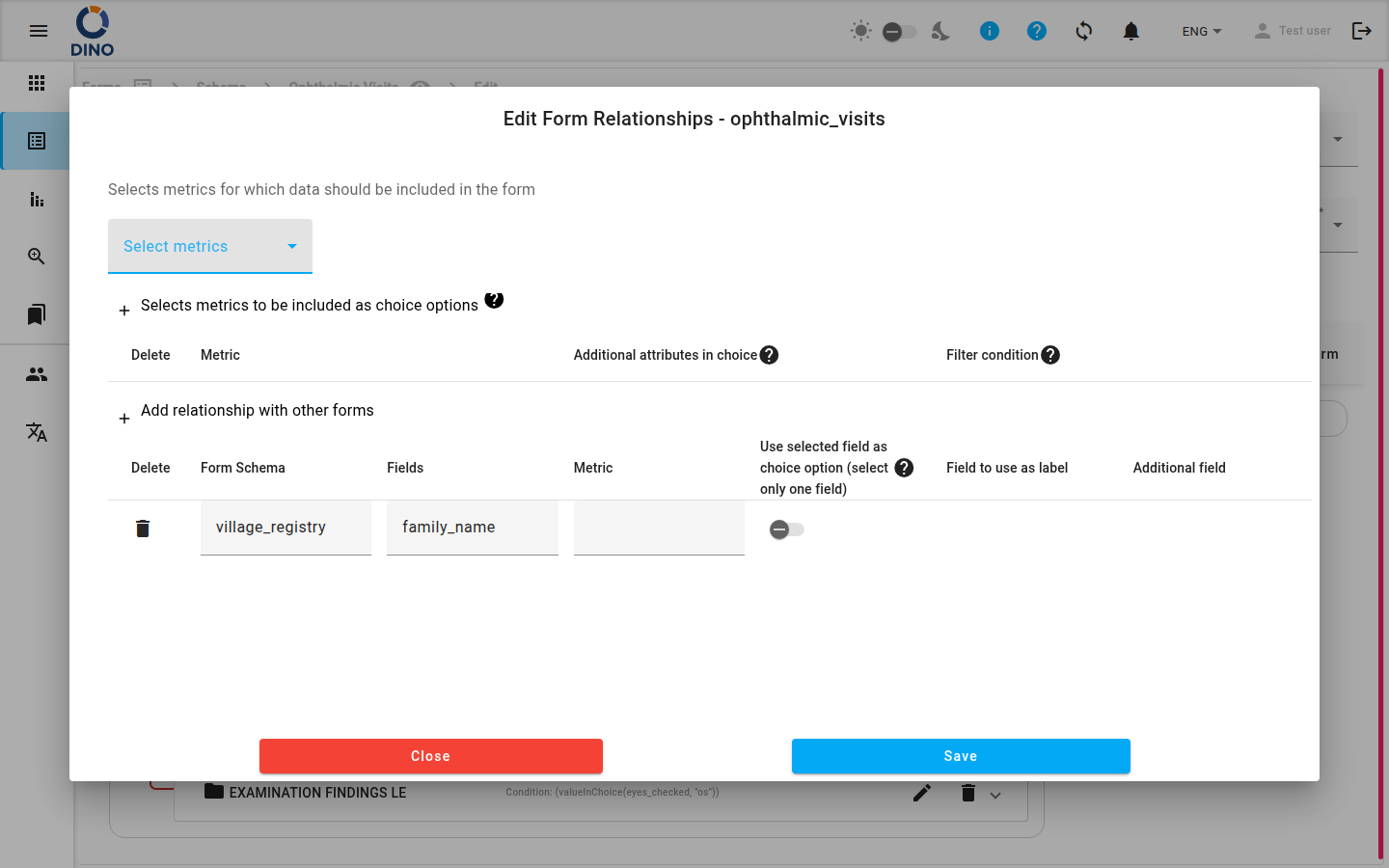
Relationships are available only when editing an existing schema, not during initial creation.
Saving and Importing
- Save – stores all changes. The button is disabled if the form is invalid or still being saved.
- Import – opens a file picker to load a form schema from a JSON or CSV file. Use this to reuse a schema structure from another project.
The Form Builder
Below the attributes, the Form Builder area lets you drag, drop, and configure individual fields (questions, sections, etc.). Changes are reflected immediately in the preview on the right side of the builder.