Navigation & Interface
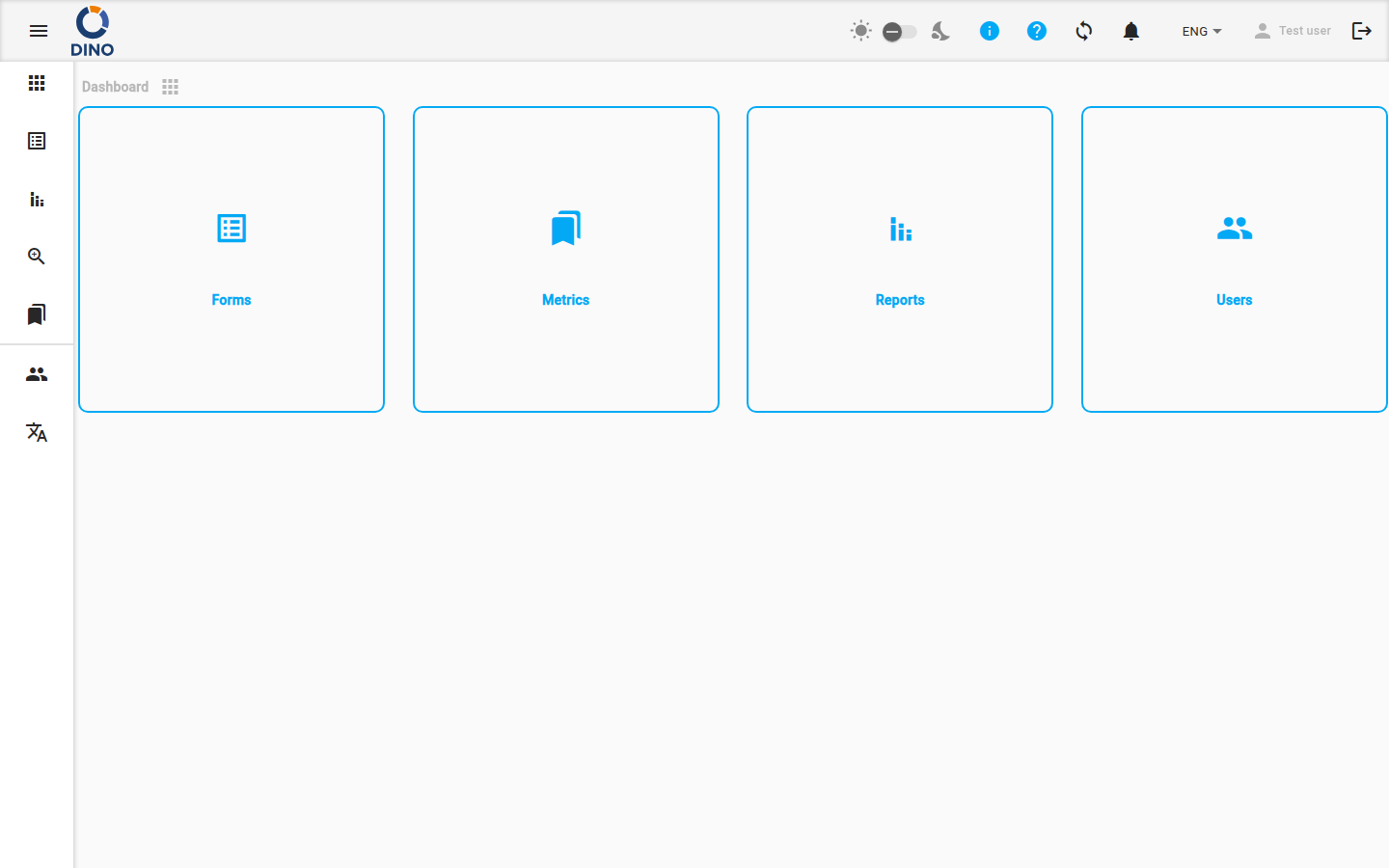
The Dino interface consists of a top toolbar and a side navigation menu that are present on every page after you log in.
Side Navigation
The side menu lets you move between the main areas of the application.
Standard sections (visible to all authenticated users):
| Section | Description |
|---|---|
| Dashboard | The home screen. |
| Forms | Data collection forms and submissions. |
| Reports | Generated reports. |
| Aggregation | Unified view of submissions across multiple forms. |
| Metrics | Reference data (projects, locations, organisations, etc.). (Hidden for guest-only users.) |
| AI | AI assistant (DinoGPT). |
Admin sections (visible to administrators only, shown below a divider):
| Section | Description |
|---|---|
| Users | User accounts and permission groups. |
| Languages | Interface translation management. |
On large screens the menu is always visible on the left. On smaller screens it collapses and can be opened with the menu button (hamburger icon) in the top toolbar. On either screen size, click the menu button to expand the menu labels or collapse them to icons only.
Top Toolbar
The toolbar at the top of the screen contains the following controls, from left to right:
- Menu toggle — open or collapse the side menu.
- Logo — displays your organisation's logo.
- New version indicator — a download icon appears when a new version of Dino is available. Click it to reload the application and apply the update.
- DINO-AI Credits — shows your remaining AI credit balance as a badge. Click to open the User Area on the Credits panel. (Only visible if a DINO-AI API key has been configured.)
- Dark / Light mode toggle — a sun icon, a slider, and a moon icon. Use the slider to switch between light and dark themes. (Hidden on mobile — use the User Area instead.)
- Info icon — hover to see version information for this installation.
- Help icon — opens the Dino tutorial playlist in a new tab.
- Settings icon — opens the User Area.
- Sync icon — shows the current data synchronisation status. Click to trigger a manual sync.
- Notifications bell — shows the number of unread notifications as a badge. The bell rings when new notifications arrive. See Notifications below.
- Language selector — switch the interface language.
- User name — click to open the User Area.
- Logout icon — click to log out. The icon is greyed out while a sync is in progress or when the device is offline; logout is unavailable in those states.
Data Synchronisation
Dino synchronises your data with the server in the background. The sync icon in the toolbar shows the current state:
| Icon | Meaning |
|---|---|
sync (static) |
All data is up to date. |
sync_problem (pulsing) |
You have local changes that have not been synced yet. Click to trigger a sync. |
sync (spinning) |
A sync is currently in progress. |
sync_disabled |
The device is offline; sync is not available. |
sync with ! badge |
A sync problem was encountered. Check your notifications for details. |
When a sync completes, a notification appears briefly at the bottom of the screen:
- "Synchronization complete" — all data synced successfully.
- "Synchronization complete with errors. Could not synchronize: [items]. Please check your notifications." — one or more data collections could not be synced. A notification is also created in your notification list.
Notifications
Click the bell icon in the toolbar to open the notifications dropdown. The badge on the bell shows the number of unread messages.
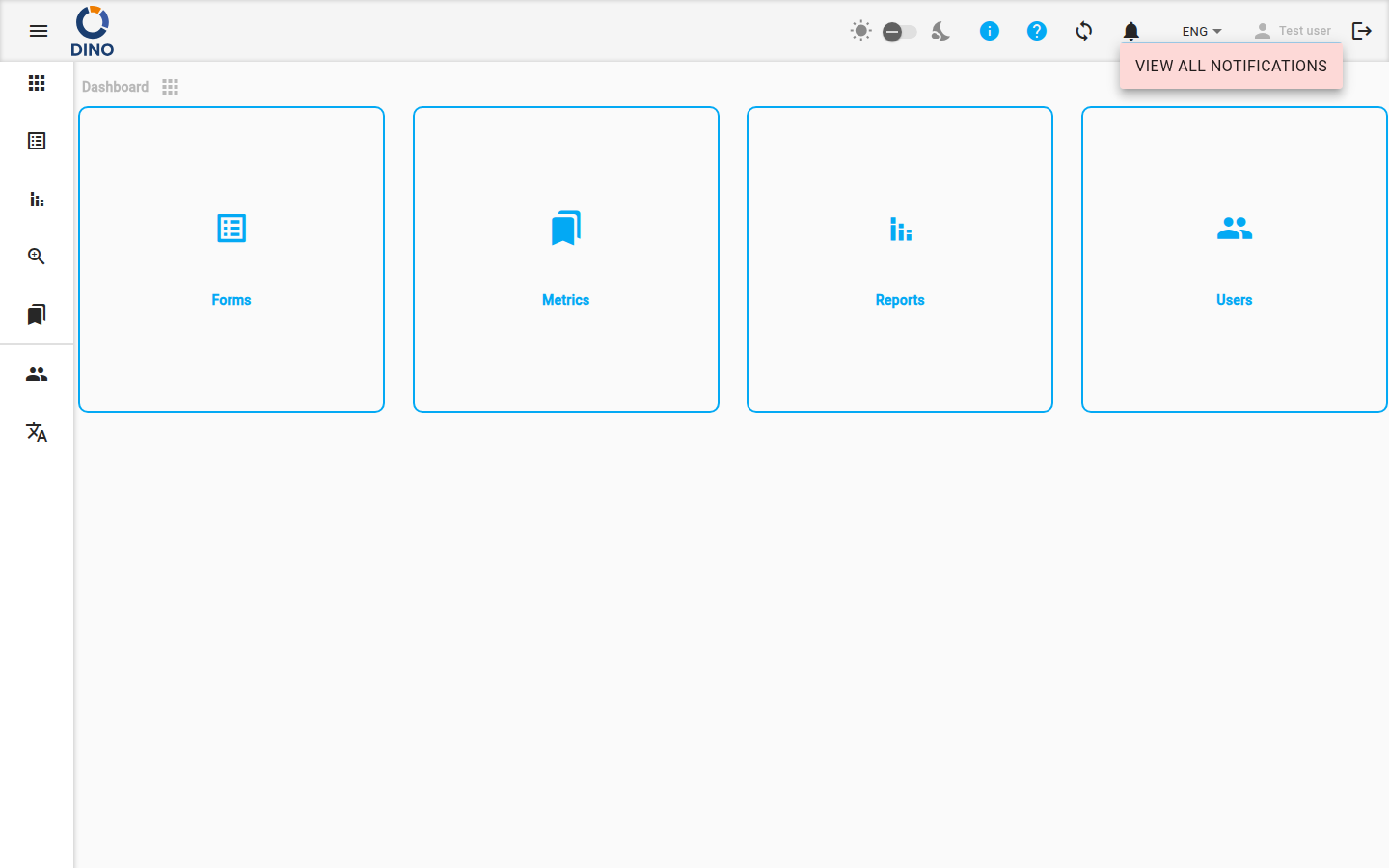
From the dropdown you can:
- Click a notification to mark it as read.
- Click the arrow button on a notification (if present) to navigate directly to the relevant area of the application.
- Mark all as read — marks all current notifications as read.
- View all notifications — navigates to the full Notifications page.
User Area
Click the settings icon, your user name, or the DINO-AI Credits counter to open the User Area dialog. It shows your full name and email address at the top.
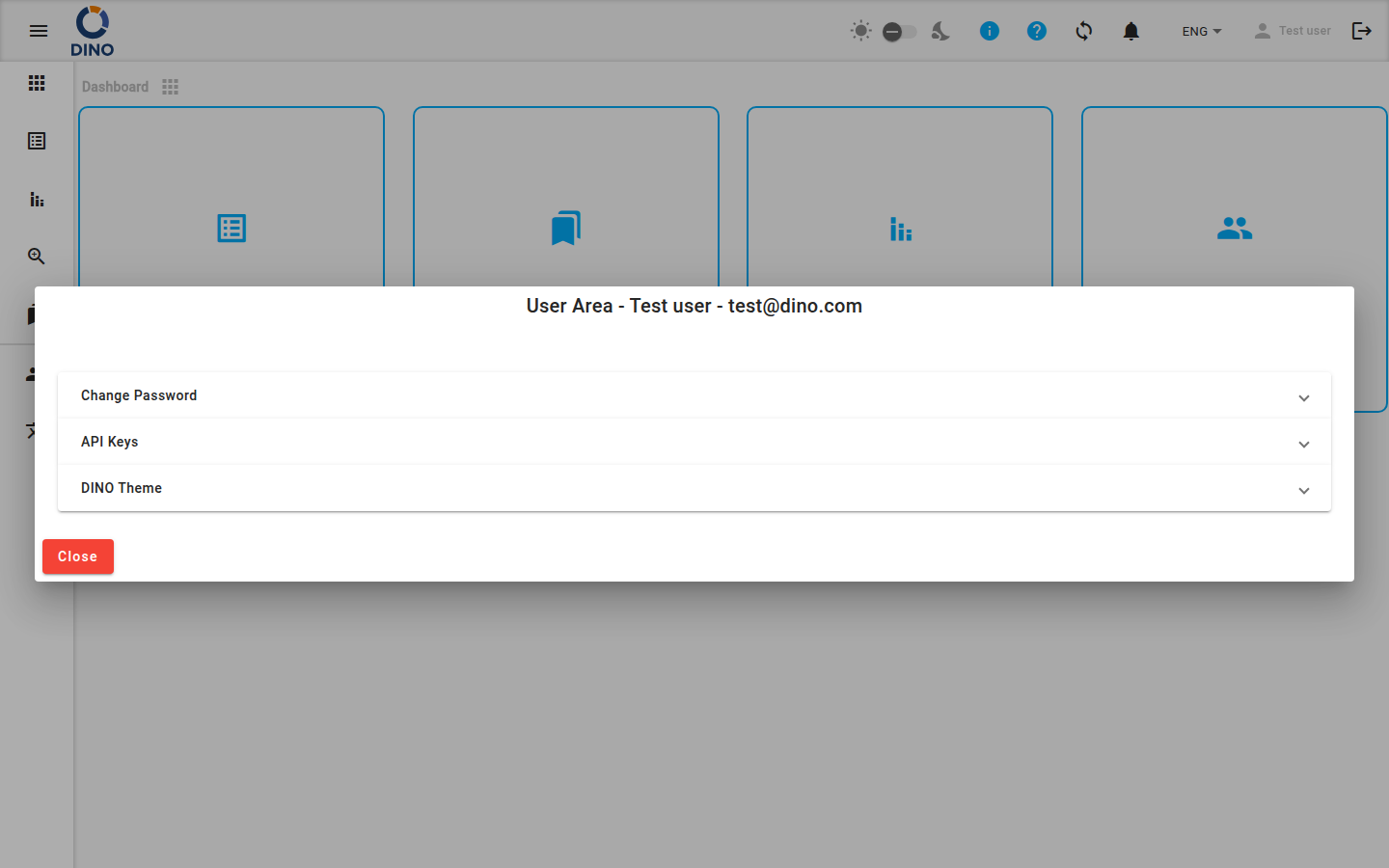
Change Password
- Enter your Current Password.
- Enter a New Password.
- Confirm New Password.
- Click the arrow button to save.
An error message will appear if the current password is incorrect or if the new passwords do not match.
API Keys
View or set your DINO-AI API Key. Once a valid key is stored it is shown in read-only mode. Use the eye icon to show or hide the key, and the copy icon to copy it to the clipboard.
Credits
Shows your current DINO-AI credit balance. If a payment integration is configured, an Add more button is available to purchase additional credits.
Visibility
This section is only visible when a DINO-AI API key has been configured.
DINO Theme
Customise the application colour scheme:
- Primary color, Accent color, Warning color — click the colour fields to open a colour picker.
- Preset name — type or select a name to save or load a colour preset.
- Click Save to save the current colours as a named preset, or Load to apply a saved preset.
On mobile, a dark / light mode toggle also appears here.
Tutorials
Click Start Dino Tour to restart the guided tour of the application from the beginning.
Availability
This section is only shown if the guided tour is configured in your installation.
Backup and Restore
(Administrators only, if enabled.)
- Backup Data — downloads a full export of the application database as a JSON file.
- Restore Data — uploads a previously exported JSON file to restore the database.
Restore Caution
Restoring data will replace the current database. This action cannot be undone.